
How do you activate Apple CarPlay® or Android Auto™ in a 2026 Outlander near Des Moines, IA?
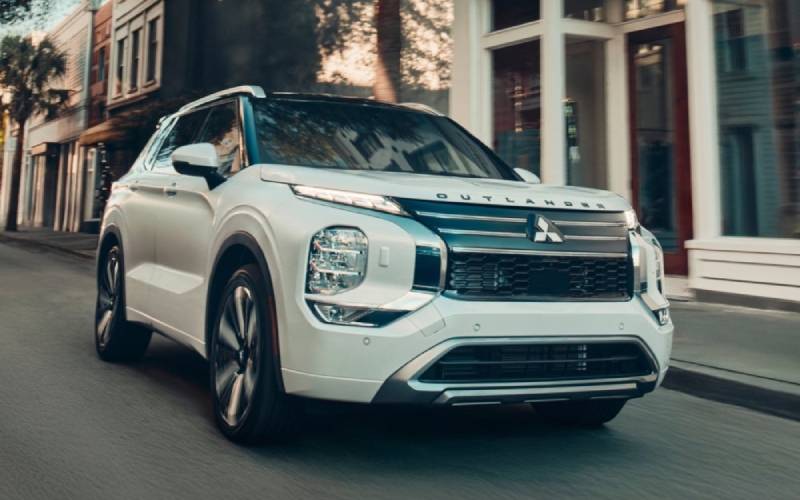
Mills Mitsubishi - Davenport - How do you activate Apple CarPlay® or Android Auto™ in a 2026 Outlander near Des Moines, IA?
If you are comparing family SUVs around Des Moines and want your phone to just work the moment you start the engine, the 2026 Mitsubishi Outlander makes it refreshingly simple. With Wireless Apple CarPlay® and Wireless Android Auto™ standard across the lineup, plus a crisp 12.3-inch Smartphone-link Display Audio with Navigation, you can bring your favorite maps, music, and messages into the cabin without a cord. At Mills Mitsubishi - Davenport, we help shoppers near Des Moines, IA get set up in minutes and leave the lot fully connected.
Why this matters for drives around Des Moines
Daily life around the metro—whether you are hopping on I-235 from Waukee, heading to Jordan Creek Town Center in West Des Moines, or navigating to a Saturday morning at the Downtown Farmers’ Market—goes smoother when navigation, playlists, and hands-free texting are ready the moment you shift into Drive. The Outlander’s wireless smartphone integration, steering wheel voice controls, and available Dynamic Sound Yamaha® audio turn every commute, school drop-off, and road trip toward Saylorville Lake into an easy, connected experience.
What you need before pairing
Spend a minute preparing and your first connection will be fast and trouble-free. Here is what to check before you begin.
- Compatible phone: An iPhone for Apple CarPlay® or an Android phone for Android Auto™.
- Bluetooth® and Wi-Fi on: Enable both on your phone for wireless setup.
- Parked vehicle: Complete first-time pairing while safely parked.
- Permissions ready: Be prepared to accept prompts on your phone and the Outlander’s screen.
- USB-C cable handy: Optional—use for a wired connection or faster charging if you prefer.
Once you have the basics covered, pairing takes just a few taps.
Set up Wireless Apple CarPlay®
Getting your iPhone talking to the Outlander’s 12.3-inch display is straightforward. Follow these simple steps the first time and your phone will auto-connect afterward.
- On your iPhone, turn on Bluetooth® and Wi-Fi.
- Start the Outlander and keep it in Park.
- On the center display, open the phone or smartphone connection menu and select Add Device.
- On your iPhone, choose your Outlander from the Bluetooth device list and confirm the pairing code on both screens.
- When asked, allow Apple CarPlay® and agree to share contacts and messages for full functionality.
- CarPlay will launch on the 12.3-inch screen—choose your favorite maps, music, and messaging apps, and you are set.
Next time you enter the Outlander, Apple CarPlay® connects automatically—perfect for quick hops from Ankeny to downtown or a run to DSM airport.
Set up Wireless Android Auto™
Android users get the same cordless convenience. The first-time pairing is equally quick and easy.
- On your Android phone, enable Bluetooth® and Wi-Fi.
- Start the Outlander and keep it in Park.
- On the center display, open the phone or smartphone connection menu and select Add Device.
- On your phone, select your Outlander from the available Bluetooth devices and confirm the pairing code.
- Follow the prompts to allow Android Auto™ permissions. If your phone suggests installing or updating Android Auto™, complete that step.
- Android Auto™ appears on the 12.3-inch display. Choose your preferred navigation, audio, and messaging apps.
From there, Android Auto™ will reconnect automatically—great for commutes along I-35 or weekend drives up to Ames.
Prefer a cable? Here is the wired option
Wireless is the Outlander’s default convenience, but if you prefer a wired connection—for maximum charging on longer drives to Clear Lake or when battery life is low—simply plug into the Outlander’s front USB-C ports. Your phone will prompt you to launch Apple CarPlay® or Android Auto™ and you will enjoy the same interface and features while charging.
Use voice for safer, simpler control
With the steering wheel voice recognition control, you can launch Siri or Google Assistant without taking your eyes off the road. Ask for turn-by-turn directions to Wells Fargo Arena, queue your favorite podcast, dictate a quick text, or call home—all by voice. It is a seamless way to stay connected while the Outlander’s advanced safety features help you stay confident in traffic.
Tune it your way with Dynamic Sound Yamaha®
Whether you are playing a curated CarPlay® playlist or a favorite Android Auto™ podcast, the Outlander’s audio completes the experience. Dynamic Sound Yamaha® Premium (8 speaker) is standard, delivering clear, balanced sound. For an even more immersive feel, the available Dynamic Sound Yamaha® Ultimate (12 speaker) adds thoughtful touches that matter in real-world driving:
- Immersive setup: A three-way design with dedicated midrange speakers and precision tweeters surrounds passengers with lifelike detail.
- Dual amplifiers: Separate amplification for low and mid/high ranges keeps music crisp and powerful.
- Smart volume features: Speed Compensated Volume is standard on both Premium and Ultimate; the Ultimate system also adds Rain Compensated Volume and Air-Conditioner Compensated Volume to keep sound consistent when conditions change.
The result is music that holds its clarity whether you are cruising I-80 or easing through neighborhood streets near Gray’s Lake.
Quick troubleshooting tips
Most connections go flawlessly. If something does not look right the first time, try these quick fixes.
- Restart and retry: Turn the vehicle off and back on, then try pairing again.
- Forget and re-pair: On your phone and the Outlander screen, remove the existing pairing and set it up fresh.
- Check permissions: On your phone, ensure Apple CarPlay® or Android Auto™ is allowed and not restricted.
- Update apps: Install any pending phone software and app updates.
- Use a quality cable: For wired use, try a known-good USB-C cable.
- One phone at a time: Temporarily disable Bluetooth® on other nearby phones to avoid conflict.
If you would like a hand, our team will walk you through setup and personalize the interface to your preferences in just a few minutes.
Local ways to make the most of it
Shoppers near Des Moines will appreciate how seamlessly the Outlander fits daily rhythms. Save favorite destinations like DSM airport, school campuses in Ankeny or Urbandale, and game-day spots near Principal Park. Use real-time traffic on your preferred maps app to sidestep I-235 slowdowns. Queue up a playlist for the family on the way to Raccoon River Park, then switch to a podcast using voice commands when you head home. It is the kind of everyday convenience that quickly becomes essential.
Visit Mills Mitsubishi - Davenport for hands-on help
We love sending owners off fully connected. When you pick up your 2026 Outlander at Mills Mitsubishi - Davenport, we will pair your phone, set up Apple CarPlay® or Android Auto™, show you the steering wheel shortcuts, and help you customize audio settings—before you leave the lot. Shopping from near Des Moines? We can start your walkthrough by phone or video, then complete setup when you arrive at our Davenport showroom. Either way, you leave confident and ready to enjoy your drive.
If you are weighing trims, we can also show you how features like the Multi-View Camera System, available power liftgate, and seating for up to seven complement your connected experience. And when questions pop up later, our service team is here to help keep everything running smoothly—software updates included.
Frequently Asked Questions:
Is Wireless Apple CarPlay® and Wireless Android Auto™ standard on the 2026 Outlander?
Yes. Wireless Apple CarPlay® and Wireless Android Auto™ are standard across 2026 Outlander trims, so you can connect without a cable on day one.
Can I still plug in for a wired connection if I want to charge faster?
Absolutely. Use the Outlander’s front USB-C ports to run Apple CarPlay® or Android Auto™ with a cable while charging. You will see the same familiar interface either way.
Which audio system does the 2026 Outlander offer for my phone’s music and podcasts?
Dynamic Sound Yamaha® Premium (8 speaker) is standard and sounds fantastic. The available Dynamic Sound Yamaha® Ultimate (12 speaker) offers an even richer, concert-like experience with features like dual amplifiers, plus smart volume functions such as Speed Compensated Volume. Rain Compensated Volume and Air-Conditioner Compensated Volume are exclusive to the Ultimate system.
Do Apple CarPlay® and Android Auto™ use my phone’s data plan?
Yes. These systems mirror compatible apps and rely on your phone’s cellular data for streaming music, navigation, and other online features.
Can I use voice commands to control apps while driving?
Yes. Press the steering wheel voice recognition control to activate Siri with Apple CarPlay® or Google Assistant with Android Auto™. You can ask for directions, play music, send messages, and more—hands-free.
Ready to see how easy it is to connect? Contact Mills Mitsubishi - Davenport to schedule a test drive of the 2026 Mitsubishi Outlander. We will pair your phone, set up your favorite apps, and get you on the road—connected and confident—whether you are commuting across Des Moines or heading out for a weekend escape.
